
Settings
All settings live in the Preferences window, reachable from the tray menu. They're grouped into seven tabs by intent: Schedule (when breaks fire), Breaks (what they look and sound like), Quiet times (when not to interrupt), System (app and OS integration), Insights (stats and history), Profiles, and About.
Settings persist automatically as plain JSON in the platform app-data directory (settings.json), atomically rewritten on every change — no save button to forget about. See Architecture internals → On-disk state for the file paths.
Info icons
Most non-obvious settings carry a small ⓘ icon next to the label — hover or focus it for a short explanation. Power-user options are tucked behind a Show advanced disclosure in each section.
A small handful of personalisation extras are part of the Supporter pack — flagged inline below and consolidated in the Supporter pack section at the end.
Schedule
The Schedule tab covers when breaks happen.
- Active hours — limit breaks to a daily time range (Bedtime ignores this and uses its own window).
- Micro breaks — per-kind mode (Overlay or Notification, or Off), schedule (interval, fixed times, or both), interval / duration, plus advanced controls for idle reset, enforceability, and manual finish.
- Long breaks — same shape as Micro breaks.
- Bedtime — start/end window and reminder cadence. Inside the window, Entracte fires a Sleep prompt instead of Micro/Long breaks. Sleep prompts are always enforceable — they ignore Do Not Disturb and camera state.
- Daily screen time — a cumulative-budget nudge that fires once you've accumulated a configurable amount of active time across the day. Different from breaks. The counter ticks only while you're actually at the keyboard, resets at local midnight, and survives restarts. A small progress bar in the same section shows today's total against the budget.
- Show advanced scheduling (collapsible) — Input-aware scheduling: delay a break if you're mid-keystroke (with grace and max deferral), and pause the break countdown while you're typing.
Break mode (per kind)
Each break kind picks its presentation from a single Mode dropdown:
- Off — disable this break kind entirely.
- Overlay (default) — full-screen prompt covering the monitor.
- Windowed — same overlay sized to 80% of the monitor and centered, with
always_on_topdropped so the surrounding desktop stays reachable. Useful when you want a visible, focus-grabbing reminder without losing access to urgent things. Composes with Show break on: e.g.Monitor under cursor+Windowedshows one 80% overlay only on the display your cursor is on. - Notification — skip the overlay entirely and post a non-blocking system notification with the break title and duration; the timer keeps ticking on the normal cadence. Because there's no overlay to interact with, break-engagement metrics (completion, skip, postpone) aren't recorded for that break type while notification mode is active.
Bedtime (Sleep) is hard-coded to full-screen Overlay and ignores this setting.
Breaks
The Breaks tab covers what breaks look and sound like, and the escape hatches.
- Overlay — transparency, text size, theme (Dark / Midnight / Forest / Rose / Sunset — plus Rotate and Custom in the Supporter pack), wellness hints toggle, current time toggle. Advanced disclosure adds monitor placement, high contrast, and the break-health vignette that intensifies as you skip more breaks. (Whether a break renders full-screen or windowed is part of the per-kind Mode dropdown in the Schedule tab — see Break mode below.)
- Sound — chime theme and volume, with a Preview button.
- Break ideas — optional rotation toggle (off by default — one idea is picked per break and stays on screen; turn on to cycle through the pool every N seconds), plus a Mix selector for Micro (Physical / Psychological / Both) and Long (Solo / Social / Both — Social prompts you to call someone, walk with a colleague, or share a coffee). The curated default pools cover every category out of the box; editing the pool text is a Supporter pack feature.
- Skip & postpone — Strict mode (no skip, no postpone, all breaks enforced), postpone toggle and minutes, optional postpone escalation (each postpone of the same break adds extra delay), and one-shot Skip next micro / Skip next long buttons.
Monitor placement
Show break on chooses where overlays appear: Primary monitor, Monitor under cursor (the display the mouse cursor is on at break-fire time), or All monitors. If active-monitor detection fails for any reason, Entracte falls back to the primary monitor.
Quiet times
The Quiet times tab covers when breaks should not fire.
- Auto-pause — suppress breaks while Do Not Disturb / Focus is on (macOS, Windows), while the camera is in use (all OSes), or while fullscreen video is playing.
- Pause for specific apps — toggle on and list app name fragments (one per line, partial case-insensitive match). Whenever any listed app is running, breaks are suppressed. A quick-add chip row offers common candidates for your platform.
- Manual pause — shows the current pause state and a Resume button when you've paused from the tray icon.
System
The System tab covers app/OS integration.
- Startup — Start Entracte at login.
- Notifications — pre-break heads-up toggle and lead time (seconds).
- Tray countdown — show a live
M:SS/MM:SScountdown next to the tray icon, ticking down to the next break. Choose whether it tracks the next micro break, the next long break, or whichever is sooner. Defaults to on, target "next". Cleared while paused (shows "paused") and during an active break. macOS shows the text right next to the menu-bar icon; Linux shows it where the tray applet renders titles (varies by desktop environment). Windows does not support tray titles, so the toggle has no visible effect there. - Show advanced (hooks) (collapsible) — bind shell commands to break events. Off by default; only enable if you understand the security risk of letting arbitrary commands run.
Insights
The Insights tab gathers all stats.
- Range — past week or past month.
- Summary — breaks taken, dismissal rate, time paused, top suppression reason.
- Breaks suppressed by — per-reason breakdown.
- Time of day — 24-hour histogram of when breaks fired.
- Past 12 weeks — a per-day heatmap.
- Manage data — Export CSV, Clear history.
- This session — in-memory counters since the current run started (Taken / Skipped / Postponed / Skip rate), with a Reset button.
Profiles
Each profile keeps its own copy of every setting on the previous tabs (break cadence, hints, overlay, quiet times, hooks, etc.). Switching between profiles is instant — the active one drives every other tab here and appears in the tray under "Active profile".
Per-row controls in the Profiles tab:
- ▲ / ▼ — reorder. Profiles render in their stored order across the tab and the tray menu.
- Use — make this profile the active one (hidden on the row that's already active).
- Rename — inline rename; Enter to confirm, Esc to cancel.
- Duplicate — clones the profile and appends
copy(orcopy 2, …) to the name. - Reset to defaults — two-click confirm. Replaces this profile's settings with the app defaults. The profile name and the rest of your profiles are untouched. If the reset profile is currently active, the change takes effect immediately.
- Delete — two-click confirm. Hidden for the active profile and for the last remaining profile.
Overlay themes
These controls live under Breaks → Overlay. The overlay is always dark (it has to dim everything else), but the accent colour and background tone follow your choice. The Preferences window itself follows your system light/dark preference.
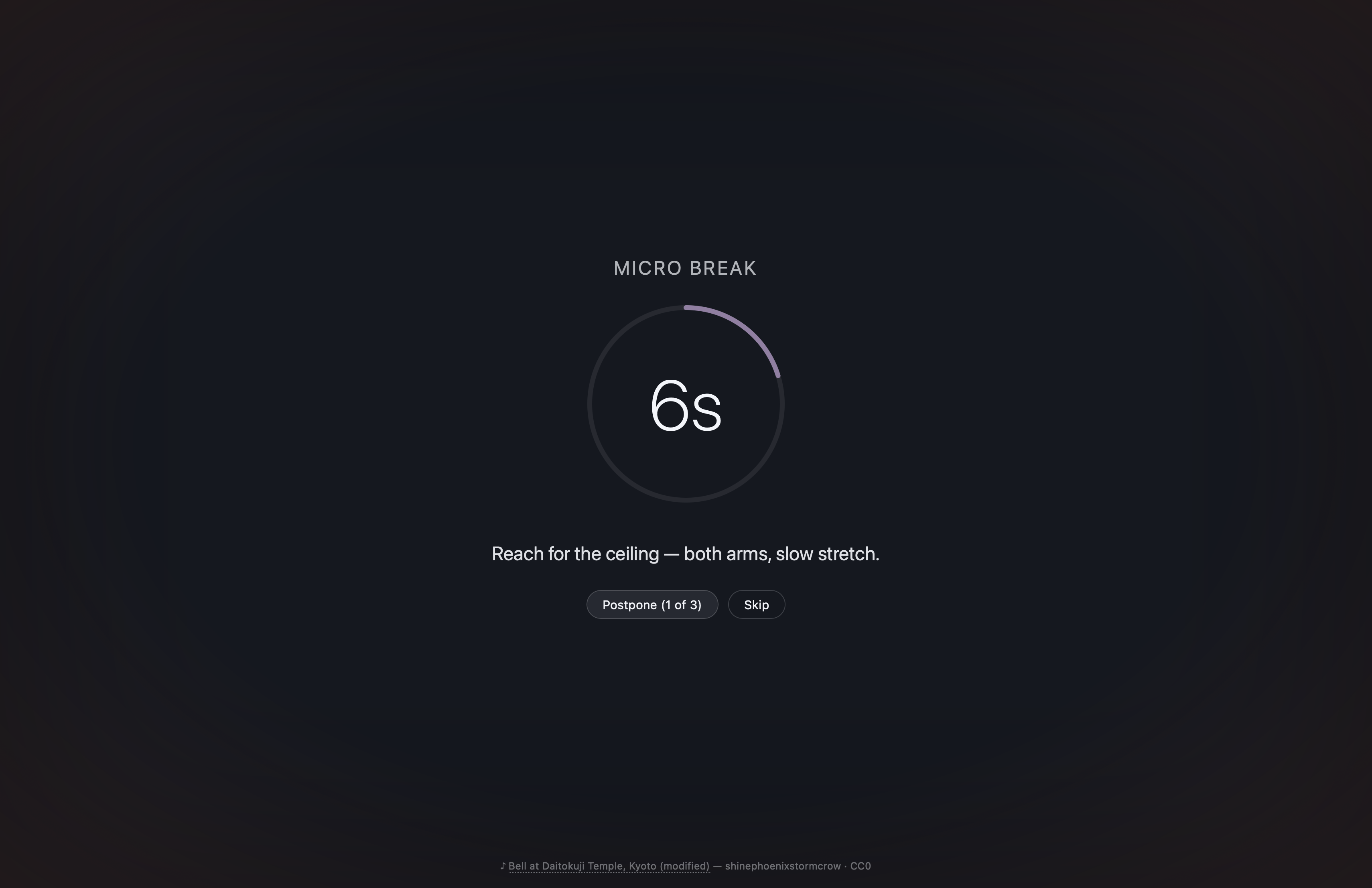
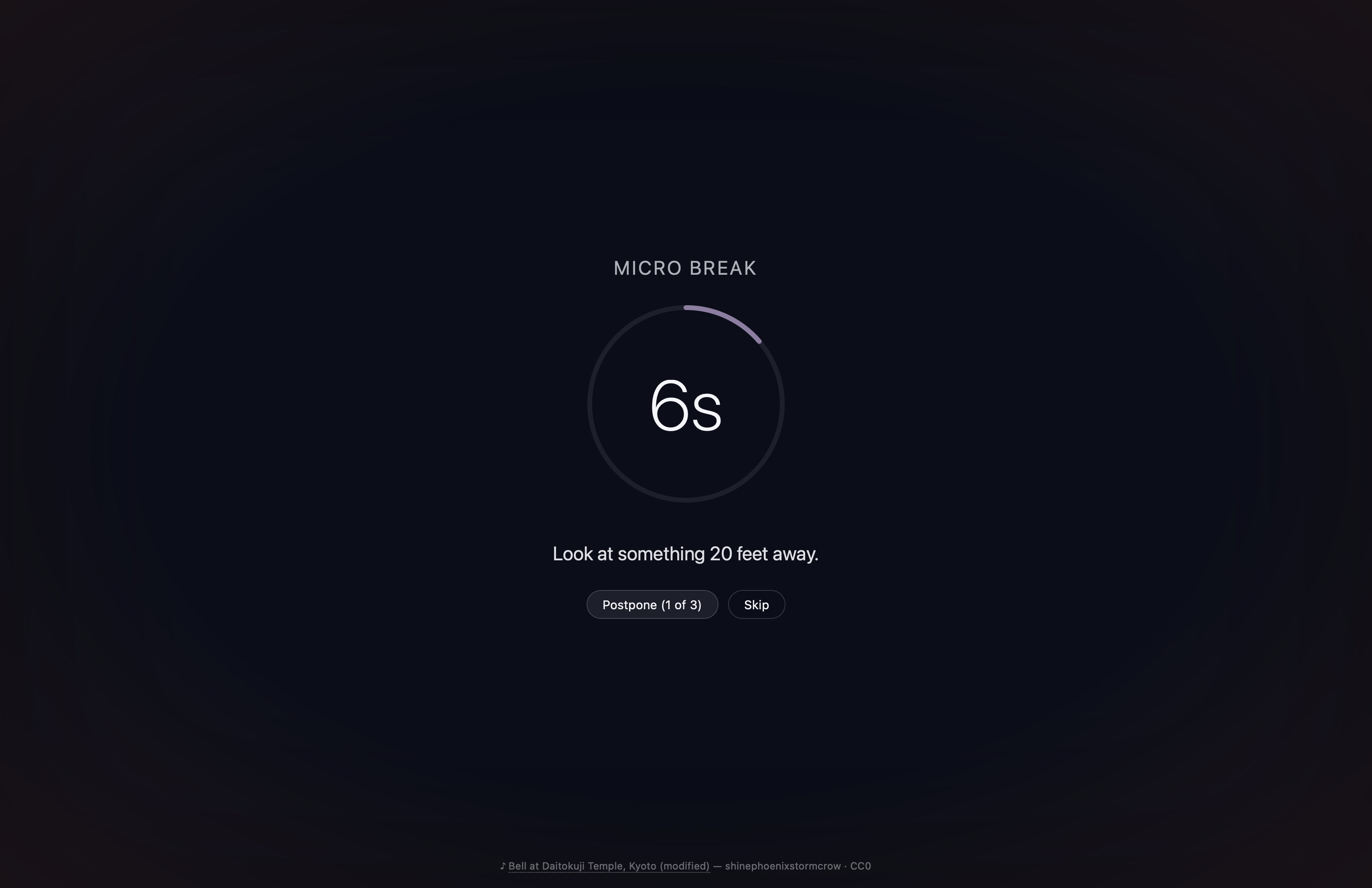
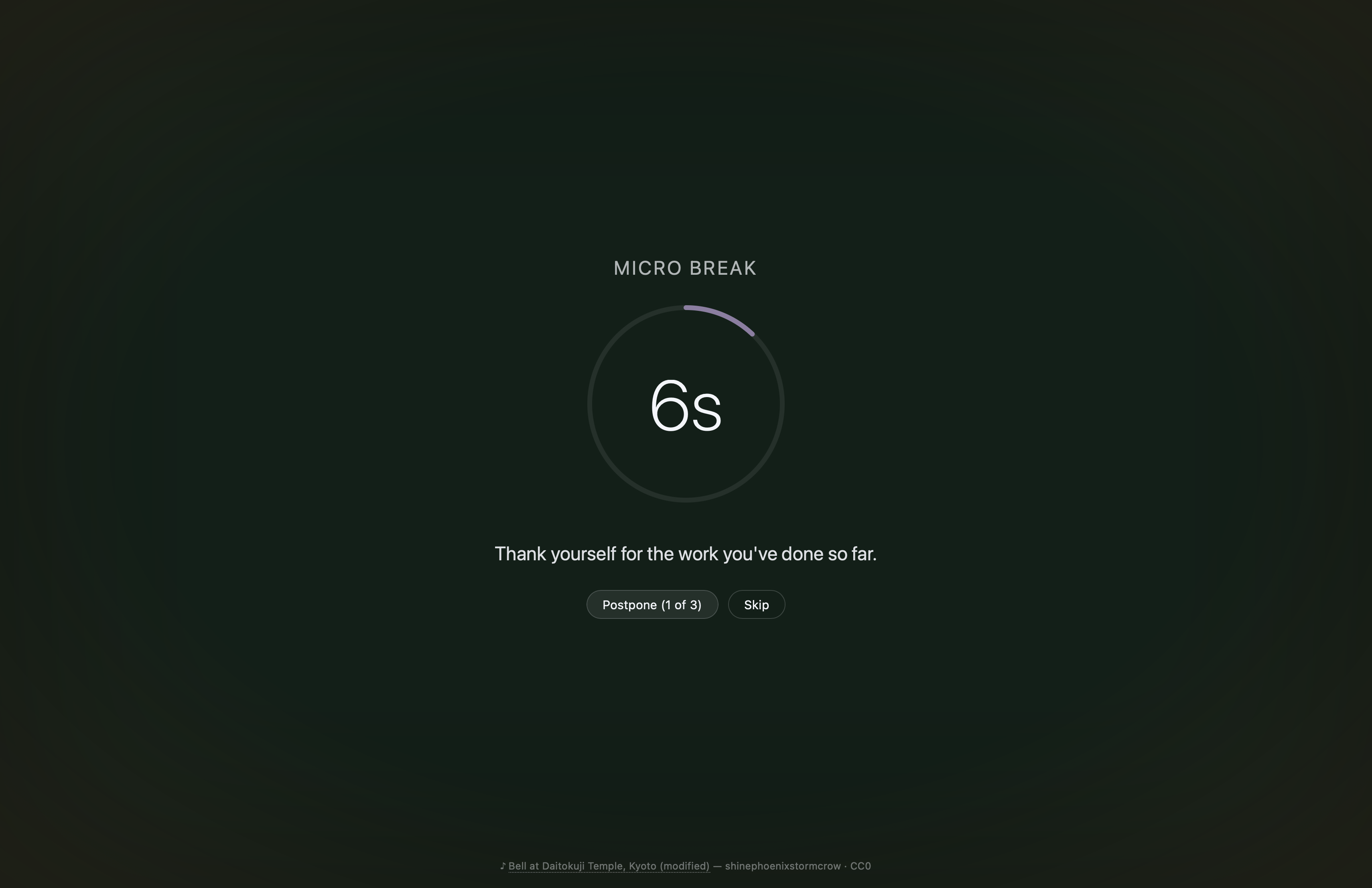
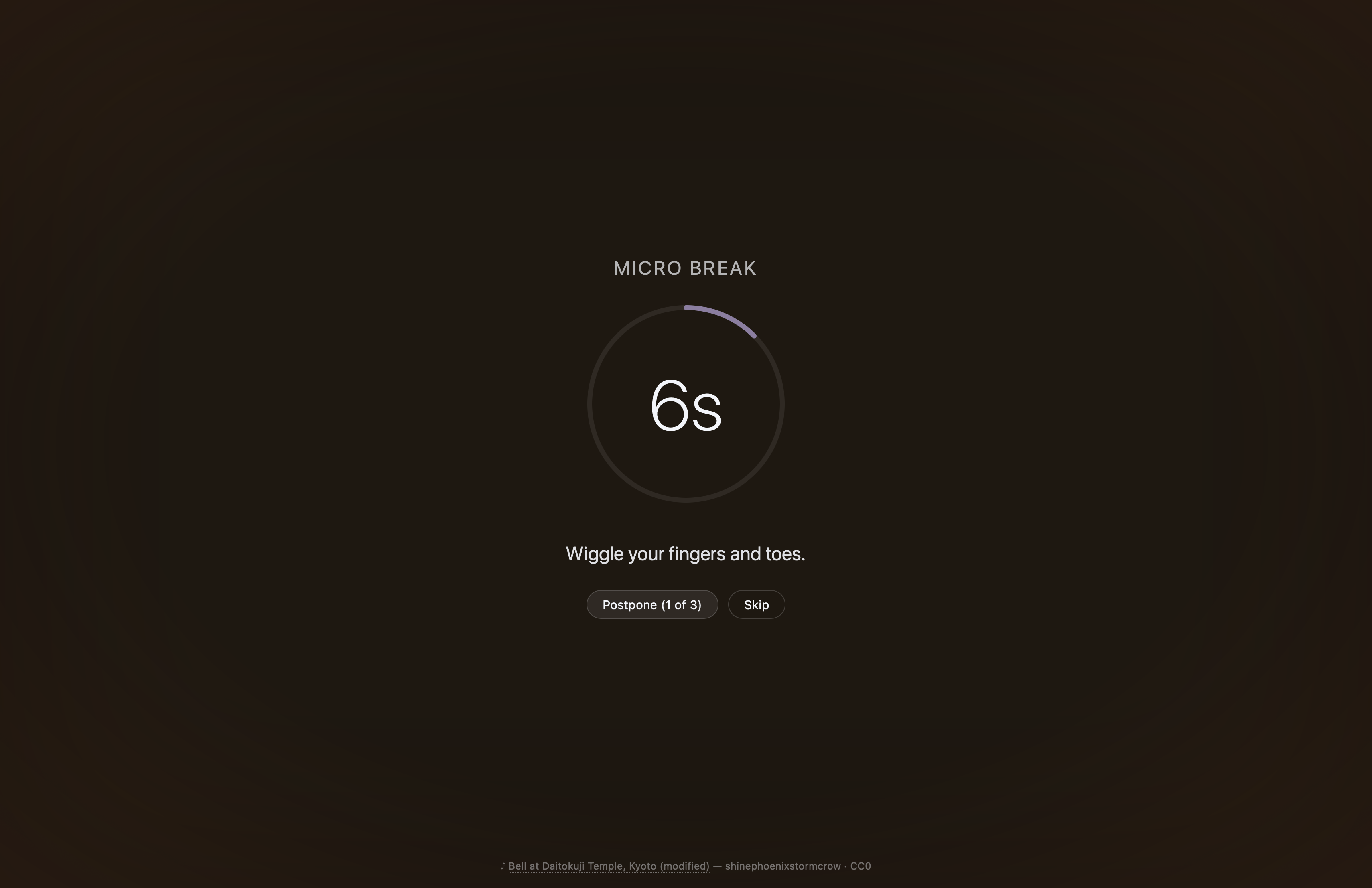
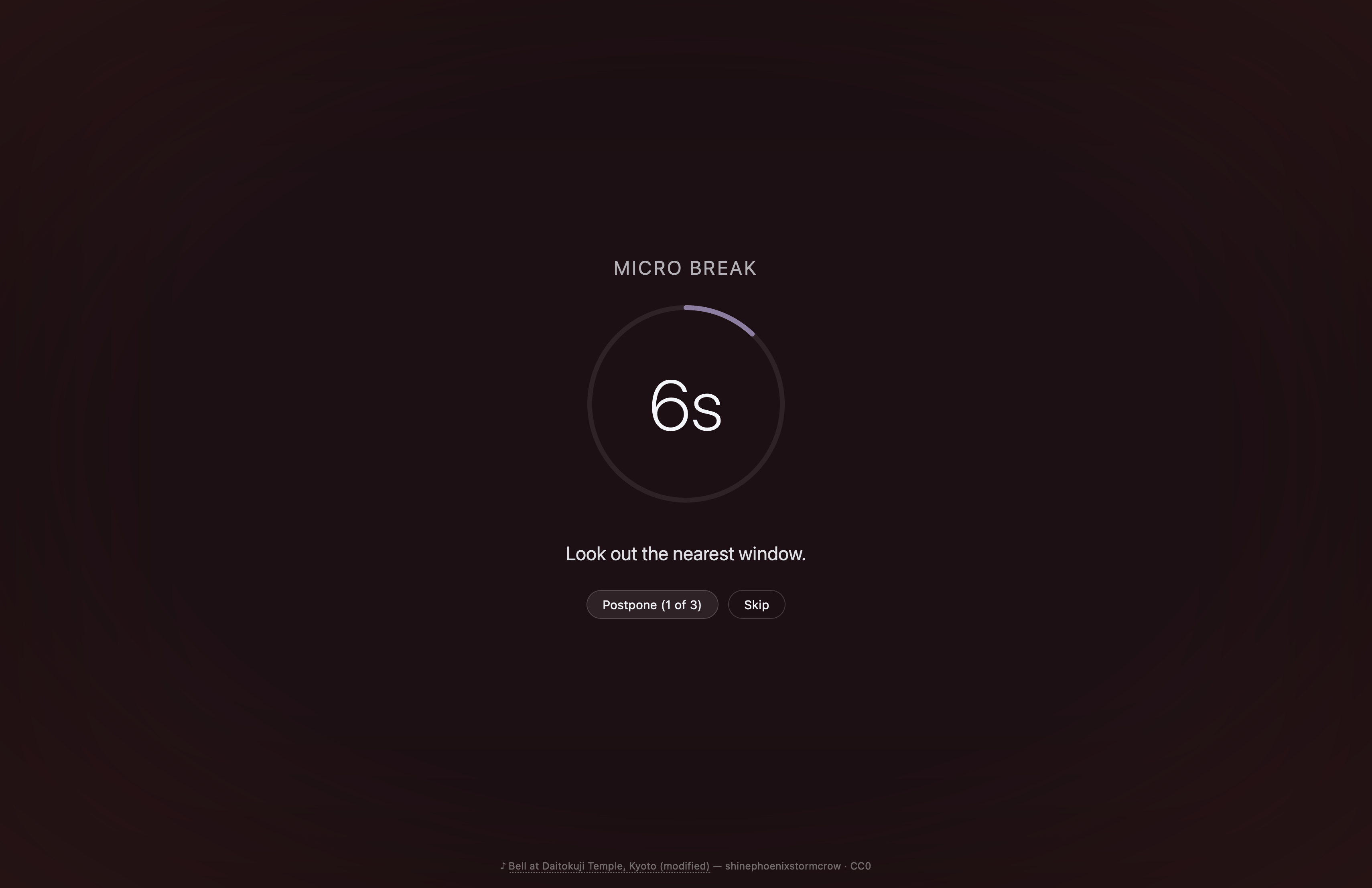
The Theme dropdown ships with five presets — Dark, Midnight, Forest, Rose, Sunset — available to everyone. Two additional entries, Rotate and Custom…, are part of the Supporter pack.
Accessibility
The overlay tries to be friendly to a range of needs.
- High contrast toggle under Breaks → Overlay → Show advanced forces a pure black background, white text, a solid white countdown ring, and bordered buttons with focus rings. It overrides the theme colour and transparency until you turn it off.
- System preferences are respected automatically, regardless of the High contrast toggle:
prefers-contrast: more(macOS Settings → Accessibility → Display → Increase contrast; Windows High contrast mode) auto-enables the high-contrast styling for that break.prefers-reduced-transparency: reduce(macOS Reduce transparency) forces the overlay opaque, ignoring the Transparency slider.prefers-reduced-motion: reduceis already honoured app-wide — the overlay fade-in is skipped.
- Screen readers get a
role="dialog"overlay with anaria-live="polite"announcement when each break starts ("Long break started. 10 minutes remaining."). The countdown timer carries anaria-labelthat reads as e.g. "9 minutes 30 seconds remaining" so navigating to it via screen-reader cursor speaks something meaningful. - Keyboard —
Escskips the break. Postpone, Skip, and "I'm back" reach focus in DOM order; the high-contrast theme adds a yellow focus ring for visibility. - Font size — the Text size slider under Breaks → Overlay scales every text element in the overlay from 80% to 160%, so users who prefer larger text don't have to squint at hint or countdown.
Supporter pack
Entracte is free and open source. A small set of personalisation extras is gated behind the supporter pack — a one-time Lemon Squeezy purchase that funds continued development. Nothing in the scheduling, suppression, profile, hooks, stats, accessibility, or CLI surface is gated; the defaults remain usable forever.
| Tab | Setting | What it unlocks |
|---|---|---|
| Breaks → Overlay | Theme = Custom… | Pick any colour via hex input or the native colour picker (with synchronised controls and an auto-darken cap so the overlay still dims the screen). |
| Breaks → Overlay | Theme = Rotate | A different preset per break, never the same one twice in a row. |
| Breaks → Break ideas | Edit hint pools | Add / remove / rewrite the prompts shown during a break. Mix selectors and rotation cadence remain free. |
| Breaks → Sound | Custom sounds (planned) | Point each break kind at your own audio file. |
Activation lives in About → Supporter in Preferences. The key is machine-bound, validated against Lemon Squeezy once a day, and tolerates 30 days offline before it re-locks. See Supporter pack for the full purchase, activation, and on-disk-storage details.